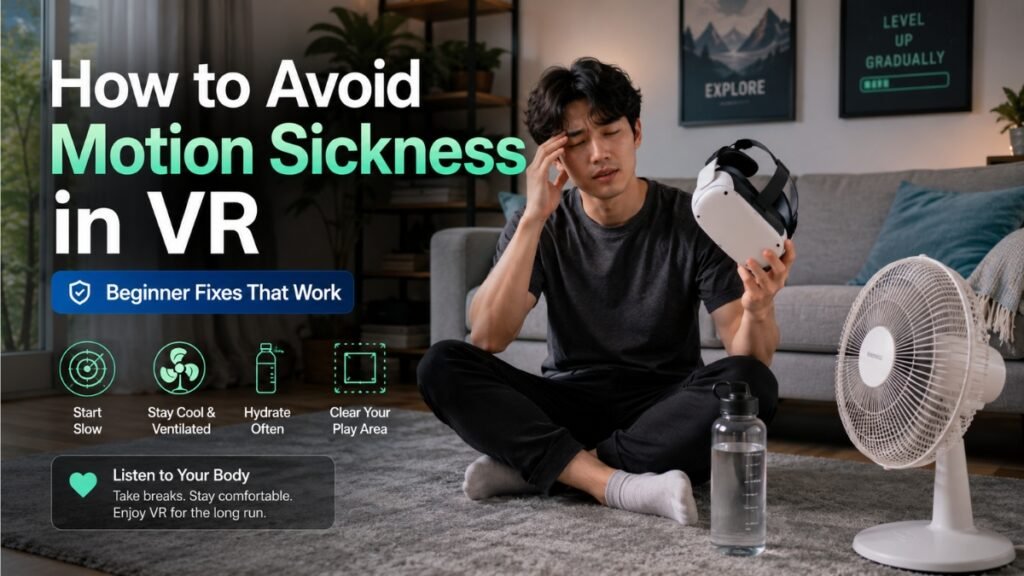
How to Avoid Motion Sickness in VR: The Ultimate Beginner Troubleshooting Guide
If you want to know how to avoid motion sickness in VR, start here: stop blaming yourself.
VR motion sickness is not weakness. It is not “you being bad at VR.” It is your brain reacting to mixed signals.
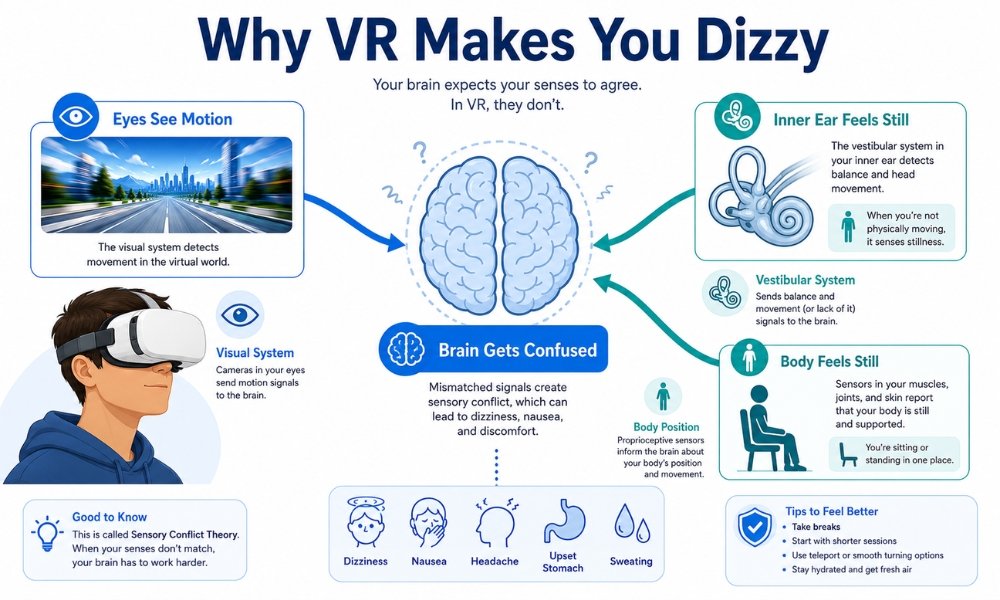
Your eyes see movement.
Your inner ear says your body is sitting still.
Your muscles and joints say you are standing in your living room.
Your brain receives three different reports and does not know which one to trust. That mismatch creates VR nausea, dizziness, sweating, headaches, and that weird “I feel off” feeling after taking the headset off.
This is called cybersickness, virtual reality sickness, simulator sickness, VIMS, or Visually Induced Motion Sickness.
Different names. Same miserable feeling.
The good news? Most beginners can reduce it and often overcome it by building “VR legs” slowly.
The bad news? If you try to tough it out, you can train your brain to hate VR.
So let’s fix this the smart way.
What Causes VR Motion Sickness?
VR motion sickness is primarily caused by sensory conflict. Your eyes see movement inside the virtual world, but your inner ear and body feel stationary. This mismatch confuses the brain and can trigger nausea, dizziness, sweating, headaches, and disorientation.
Does VR Motion Sickness Go Away?
Yes, VR motion sickness often improves as you build tolerance, commonly called getting your “VR legs.” Start with short 5-to-10-minute sessions, use comfort settings like teleport movement and snap turning, and stop immediately at the first sign of discomfort.
What Causes Cybersickness?
Cybersickness starts with a conflict inside your nervous system.
Your brain tracks motion through three systems:
- Visual system: what your eyes see
- Vestibular system: your inner ear balance system
- Proprioception: what your muscles and joints feel
In normal life, these systems agree.
If you walk forward, your eyes see movement, your inner ear feels motion, and your legs feel steps.
In VR, that agreement breaks.
You may push the joystick forward and fly through a virtual city, but your body is not moving. Your eyes report motion. Your inner ear reports stillness. Your legs report nothing.
That sensory conflict theory explains why VR makes people dizzy.
Your brain treats the mismatch like something is wrong. Some research models explain this as an old survival response. Your brain may interpret sensory confusion like a toxin or poison, then triggers nausea to protect you.
That sounds dramatic, but it explains why the reaction feels so physical.
You are not “thinking yourself sick.” Your body is responding to a real sensory mismatch.
Postural Instability: The Second Reason You Feel Weird
Another explanation is postural instability.
When your brain cannot predict how to balance your body in a virtual environment, it makes tiny correction movements. Over time, those little balance adjustments create fatigue and disorientation.
This is why beginners often feel better when seated or when touching something stable.
A wall, couch, chair, or VR mat gives the body a reference point. Your brain says, “Okay, I know where I am.”
That reference point matters.
Common Symptoms to Watch For
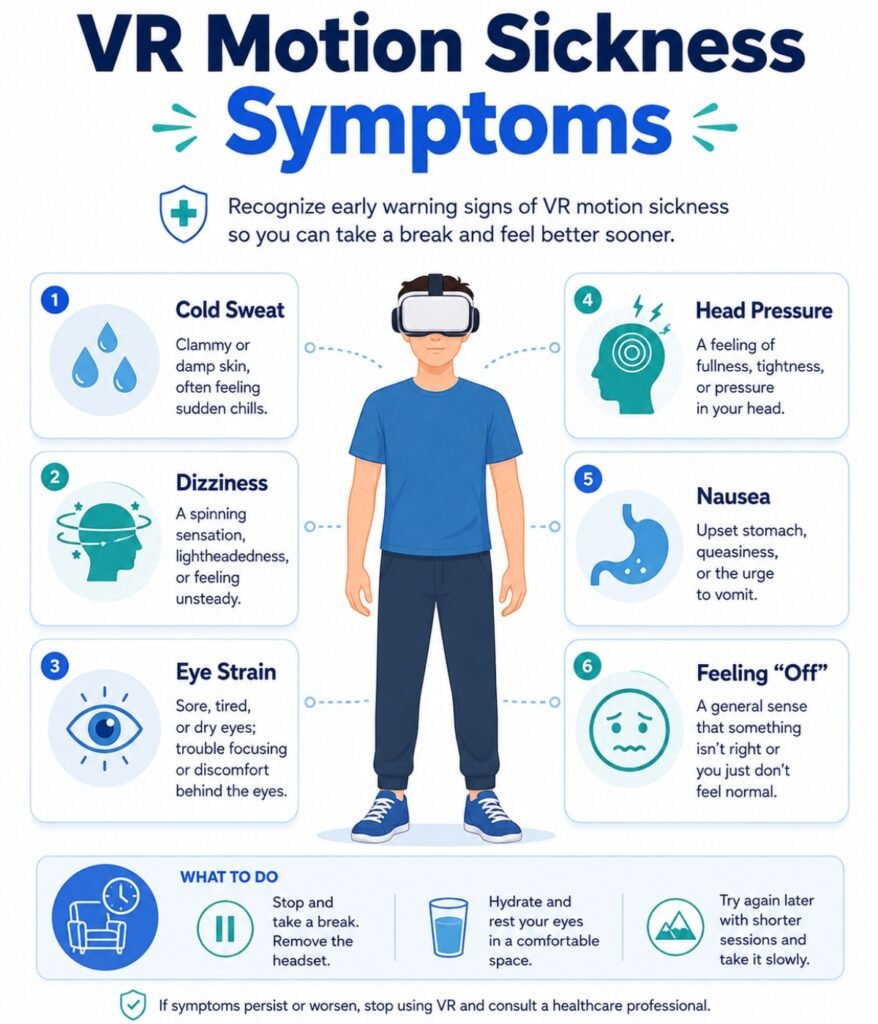
VR sickness does not always begin as full nausea.
Watch for early warning signs:
- Warm face
- Cold sweat
- Stomach awareness
- Slight dizziness
- Eye strain
- Head pressure
- Burping
- Saliva increase
- Lightheaded feeling
- Feeling detached after removing the headset
- Headache between the eyes
- Feeling like the room is still moving
The early signs matter because this is where beginners make the biggest mistake.
The “Tough It Out” Mistake
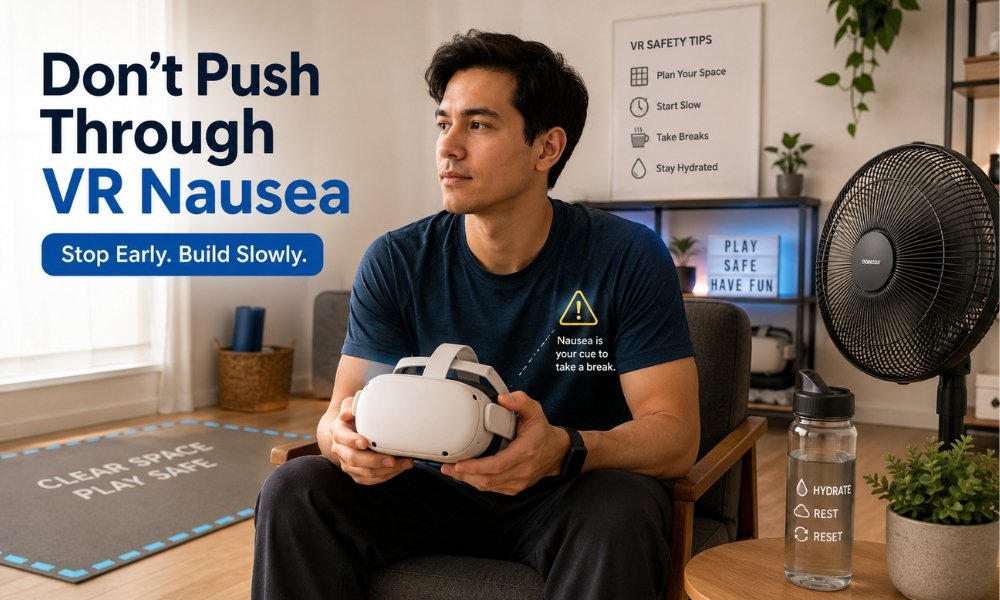
Do not push through VR nausea.
That is the fastest way to make it worse.
When you keep playing after nausea starts, your brain can connect the headset with sickness. Over time, just seeing the headset, smelling the face pad, or launching the same game can trigger nausea before you even start.
That is the dread loop.
The fix is simple:
Stop early.
Take the headset off.
Sit down.
Look at a stable real-world object.
Let your body reset.
You are not quitting. You are training your brain correctly.
Common Causes of VR Motion Sickness
Here are the biggest beginner triggers.
| Trigger | Why It Causes Sickness | Best Fix |
| Smooth locomotion | Your eyes see walking, but your body stands still | Use teleport movement |
| Smooth turning | Continuous camera rotation confuses the inner ear | Use snap turning |
| Low frame rate | Choppy visuals increase sensory conflict | Use 90Hz or 120Hz when possible |
| Bad IPD setting | Eye strain causes headaches and nausea | Measure and adjust IPD |
| Poor head strap fit | Pressure and shifting blur the image | Upgrade the strap |
| Hot room | Heat and sweating accelerate nausea | Use a room fan |
| Dirty or foggy lenses | Your eyes work harder to focus | Clean lenses correctly |
| Starting with intense games | Racing, flying, and rollercoasters overwhelm beginners | Start stationary |
| Playing tired or dehydrated | Your body has less tolerance | Rest and hydrate first |
Step-by-Step Fixes for Active VR Nausea
If you already feel sick, do this.
Step 1: Stop Immediately
Take the headset off as soon as you feel discomfort.
Do not finish the match.
Do not try one more level.
Do not “prove” anything.
Stop.
Step 2: Cool Down
Sit in a cool room. Point a fan toward your body. Take slow breaths.
Heat makes VR nausea feel worse.
Step 3: Look at a Real Object
Focus on a stable object across the room. A wall, lamp, table, or window frame works.
This gives your brain a real-world anchor.
Step 4: Drink Water
Dehydration lowers your tolerance. Sip water slowly.
Avoid alcohol before VR. Avoid heavy, greasy meals right before play.
Step 5: Wait Before Returning
Do not jump back in right away. Wait until your body fully settles.
If you still feel off, stop for the day.
Zero-Cost Behavioral Hacks That Actually Help
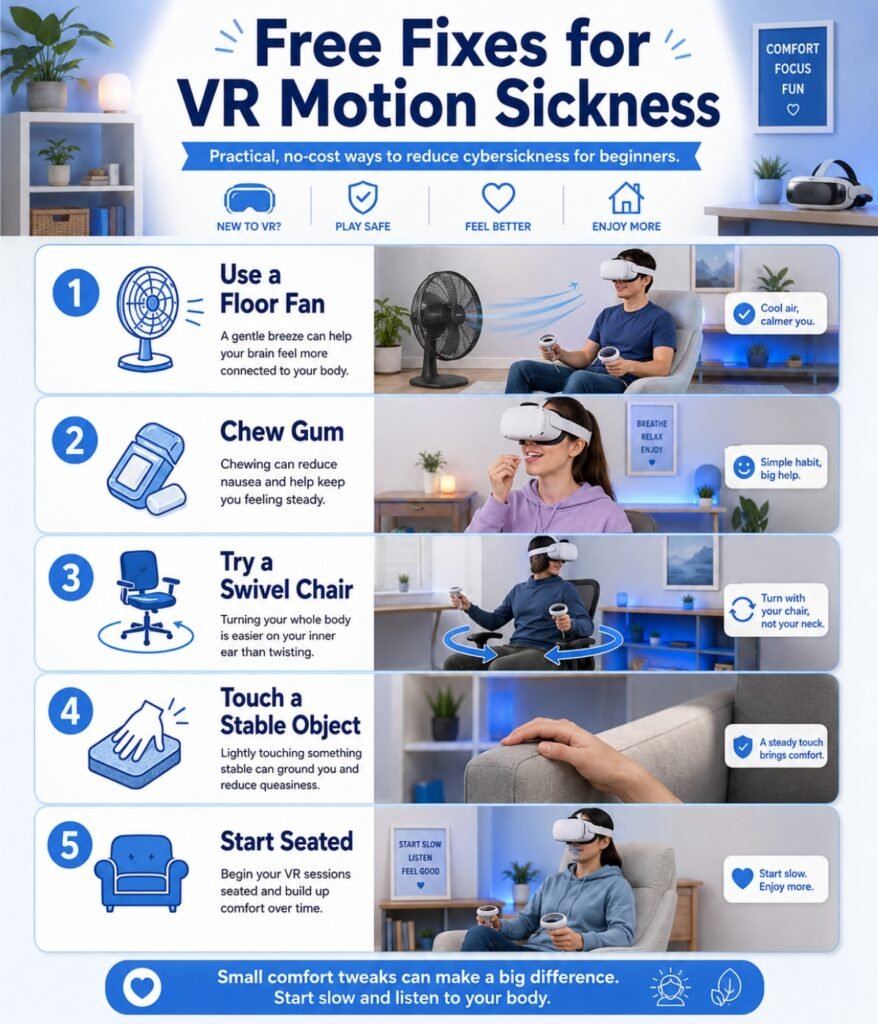
Start with free fixes before buying anything.
1. Use a Floor Fan
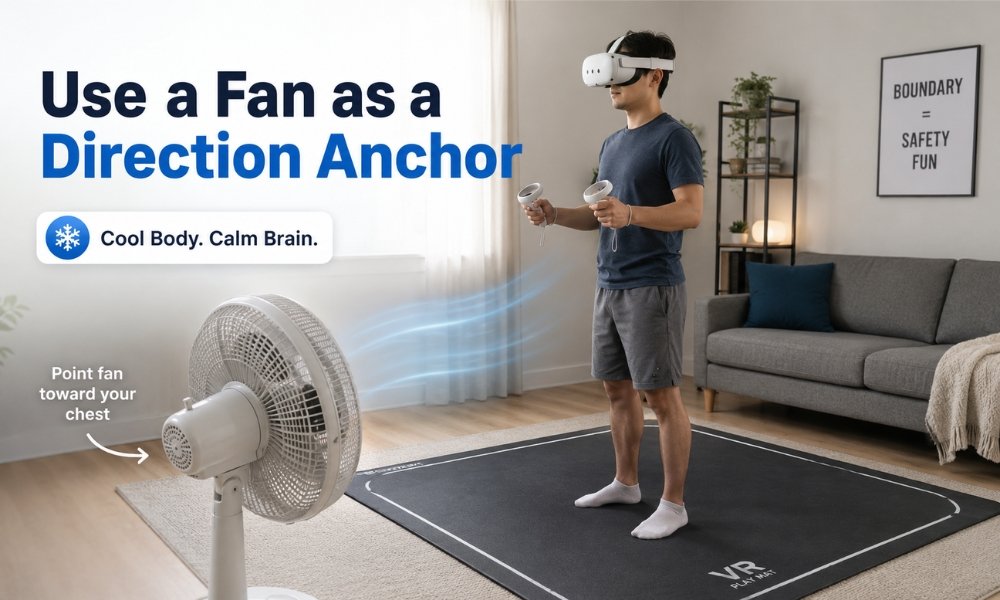
A fan is one of the simplest fixes.
Place a floor fan or standing fan in front of your play area and aim it at your chest or face.
The fan helps in two ways:
- It cools your body
- It gives your brain a directional anchor
That breeze tells your brain which way is “forward.” This reduces the floating, disconnected feeling many beginners get.
2. Chew Gum
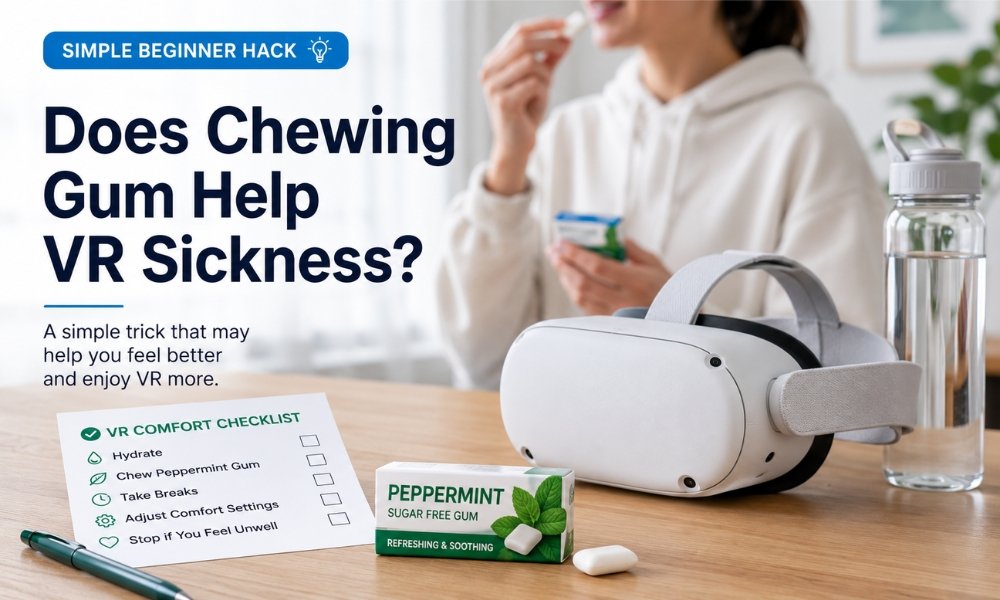
Does chewing gum stop VR motion sickness?
For some people, yes, it helps.
Chewing creates rhythmic jaw movement. That repetitive motion can calm the vestibular system and distract the brain from the visual mismatch.
Try peppermint or ginger gum before and during play.
It is cheap, easy, and has no drowsiness.
3. Sit in a Swivel Chair
If a game requires turning, use an armless swivel chair.
Instead of using the right joystick to rotate the camera, turn your body physically with the chair.
Your inner ear feels rotation while your eyes see rotation. That matching signal can reduce nausea.
4. Touch a Stable Object
Try keeping the back of your legs lightly touching a couch or bed.
This gives your body a physical reference point. It reminds your brain you are standing still in a safe room.
5. Start Seated
Beginners should start seated for games that allow it.
Standing adds balance demands. Sitting lowers the load on your body while your brain adapts.
How to Get VR Legs
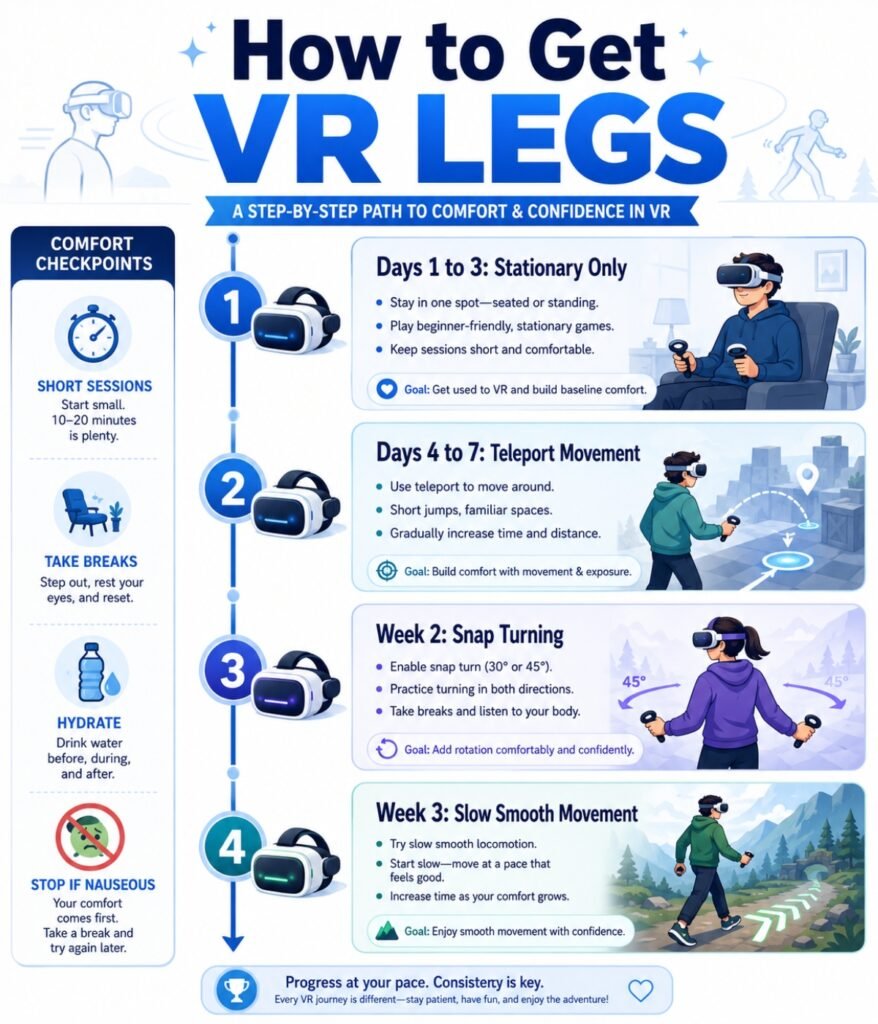
“VR legs” means your brain has adapted to virtual movement.
You get there through slow exposure, not force.
Use this beginner schedule:
Day 1 to 3: Stationary Only
Play 5 to 10 minutes.
Choose games where you stand still, sit still, or move naturally.
Good starter types:
- Rhythm games
- Puzzle games
- Mini golf
- Art apps
- Seated experiences
- Room-scale games with no joystick walking
Day 4 to 7: Teleport Movement
Play 10 to 20 minutes.
Use teleport movement only.
Teleport movement skips the visual sliding motion that triggers many beginners.
Week 2: Snap Turning
Keep teleport movement on. Add snap turning if needed.
Snap turning jumps your view in small steps, often 30 or 45 degrees. This is easier than smooth turning because your brain does not process it as continuous spinning.
Week 3 and Beyond: Slow Smooth Movement
Try smooth locomotion only after you feel comfortable.
Start slow.
Use comfort blinders or vignettes.
Stop early if nausea returns.
In-Game Settings to Change Immediately
Before blaming your headset, check your settings.
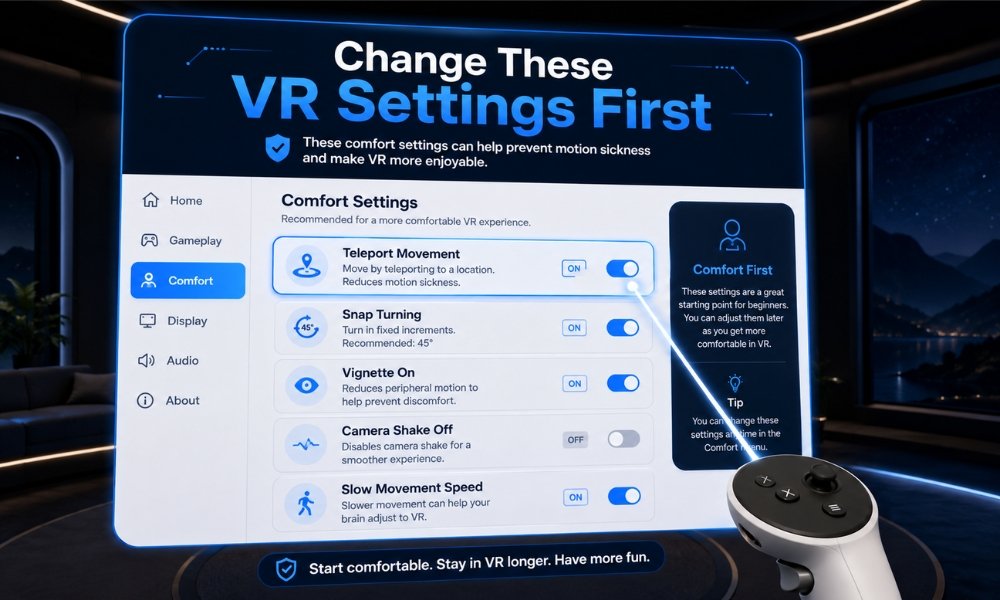
Turn On Teleport Movement
Teleportation is the safest movement mode for beginners.
It removes the constant visual flow of artificial walking.
Turn On Snap Turning
Snap turning is much easier than smooth turning.
Start with 30-degree or 45-degree turns.
Turn On Vignette or Comfort Blinders
A vignette darkens the edges of your view while moving.
Peripheral vision is very sensitive to motion. Reducing edge motion lowers nausea triggers.
Turn Off Camera Shake
Camera shake adds extra motion your body does not feel.
Turn it off whenever possible.
Reduce Movement Speed
Fast artificial walking can be rough.
Lower movement speed until your tolerance improves.
Avoid Smooth Backward Movement
Backward movement is one of the fastest nausea triggers for new users.
Turn your body physically instead.
Hardware Optimizations That Reduce VR Nausea
Set the Correct IPD
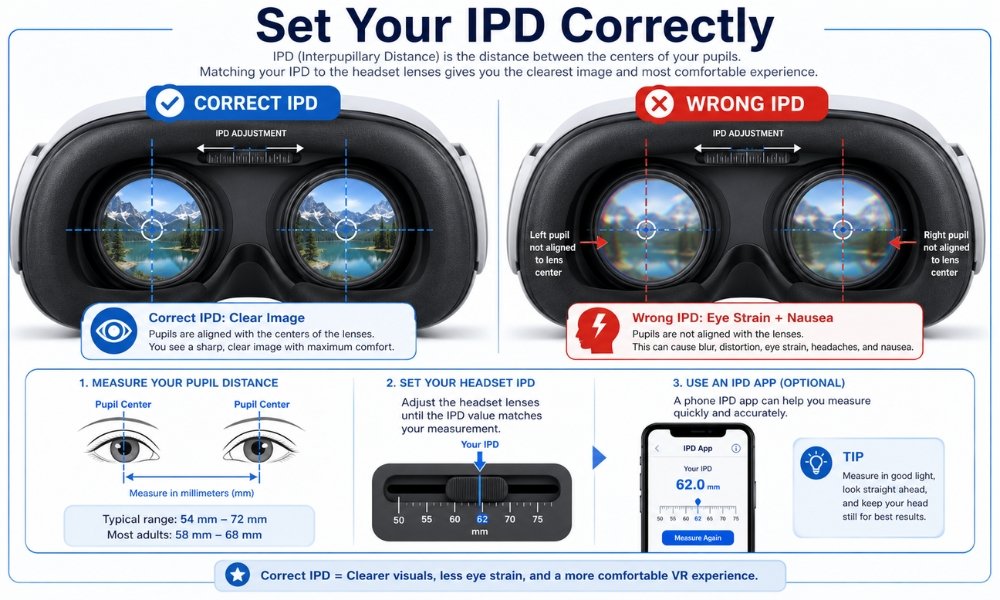
IPD means interpupillary distance. It is the distance between your pupils.
Wrong IPD causes:
- Eye strain
- Double vision
- Blurry image
- Headaches
- Nausea
Use your headset’s IPD setting and adjust until the image looks clear and relaxed.
A phone IPD app or optometrist measurement helps.
Keep the Image Sharp
Blurry visuals make your eyes work harder.
Check:
- Lens cleanliness
- Headset position
- Strap tension
- IPD setting
- Glasses or prescription inserts
- Face gasket fit
Use 90Hz or 120Hz When Possible
Low refresh rates can make VR feel choppy.
For comfort, 90Hz is a strong baseline. 120Hz can feel smoother when supported.
Watch for the 72Hz trap. Some standalone headsets may use lower refresh rates to save power or manage heat. If your headset feels worse suddenly, check refresh rate, battery level, heat, and game performance.
Try the Open-Face Mixed Reality Trick
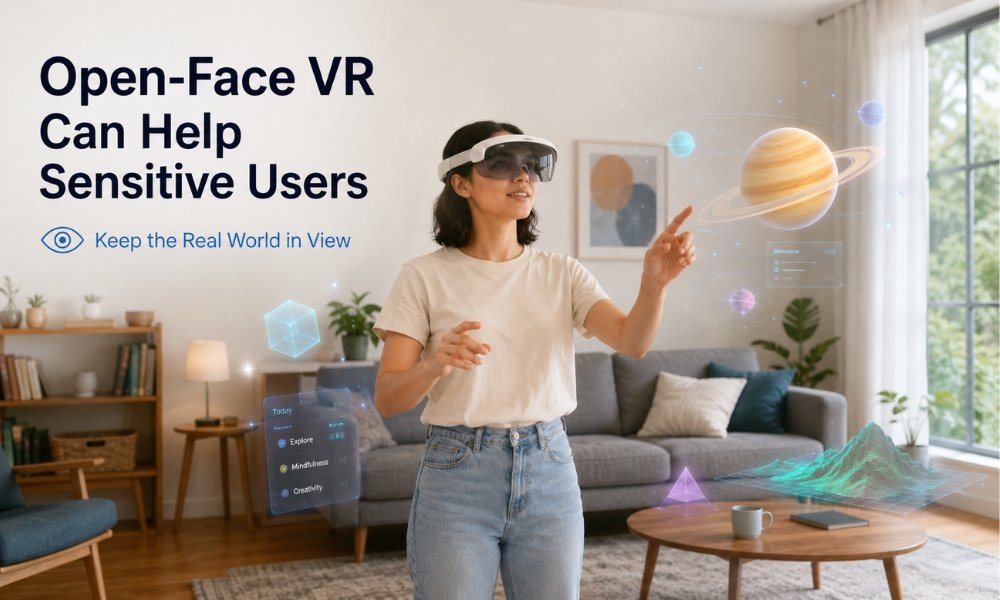
This is one of the most overlooked fixes.
On some headsets, especially mixed reality-friendly headsets, removing the facial interface or using an open-style facial interface lets you see the real world in your peripheral vision.
That real-world view becomes a spatial anchor.
It reminds your brain where your body actually is.
This can help sensitive users stay comfortable much longer.
Prevent Lens Fog
Lens fog increases eye strain.
Try this:
- Store the headset in a warm room
- Let the headset warm up for a few minutes before play
- Use a room fan
- Use a vented facial interface
- Clean lenses only with a dry microfiber cloth
- Never use household glass cleaner on headset lenses
Recommended Accessories to Help Stop VR Nausea
Buy accessories only after fixing settings and habits first.
The best accessory is the one that solves your actual trigger.
Best Head Strap for Meta Quest 3 Comfort
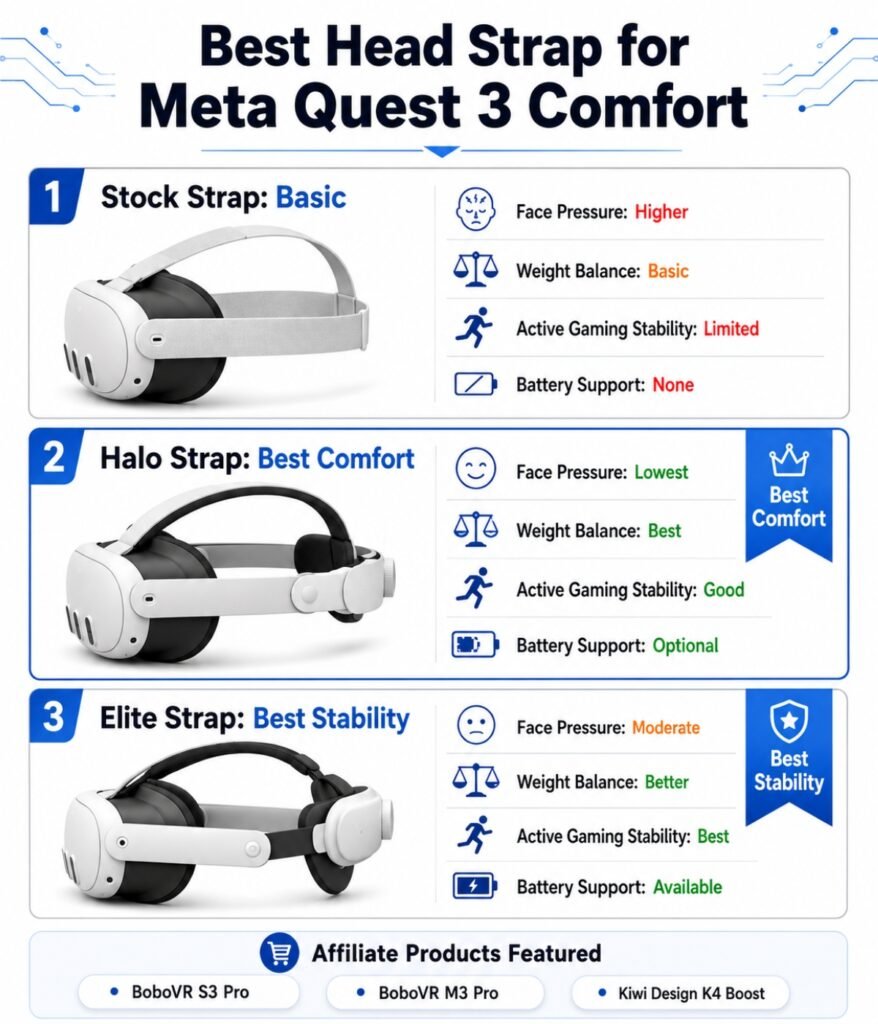
A better head strap reduces face pressure, improves lens alignment, and helps prevent headaches.
Good options:
- BoboVR S3 Pro: best premium halo-style comfort with battery and cooling
- BoboVR M3 Pro: strong comfort and battery balance at a lower price
- Kiwi Design K4 Boost: more secure Elite-style strap for active gaming
Halo-style straps shift weight off the face.
Elite-style straps lock the headset more tightly for active games.
Choose halo for long comfort.
Choose Elite-style for fitness and movement.
Room Fan vs Headset Fan
A room fan is usually the first choice.
It cools your body and provides directional grounding.
Headset-mounted fans can reduce fog, but some users complain about dry eyes from constant airflow inside the visor.
Use room fan first. Add headset fan only if fogging is your main issue.
Best Anti-Fatigue Mat for Virtual Reality
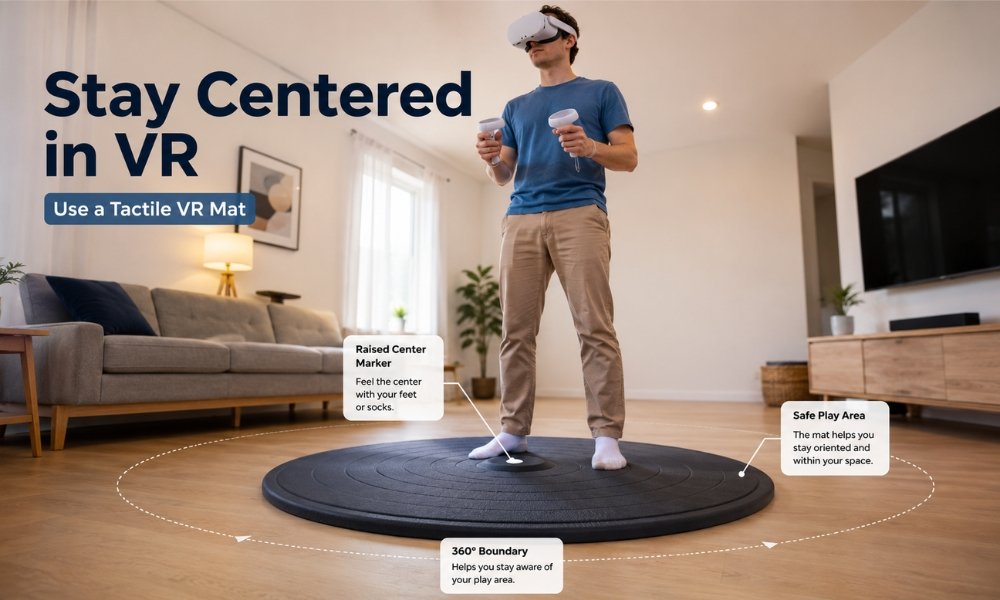
A VR mat helps your feet know where you are.
Good VR mats include:
- ProxiMat Portal
- ProxiMat Compass
- XPACK VR mat
- Round anti-fatigue kitchen mat
- Round shag rug for DIY grounding
Look for:
- Non-slip base
- Soft anti-fatigue foam
- Raised center marker
- Directional foot texture
- Easy-clean surface
The raised center point helps you re-center without looking.
Natural Locomotion SteamVR Review
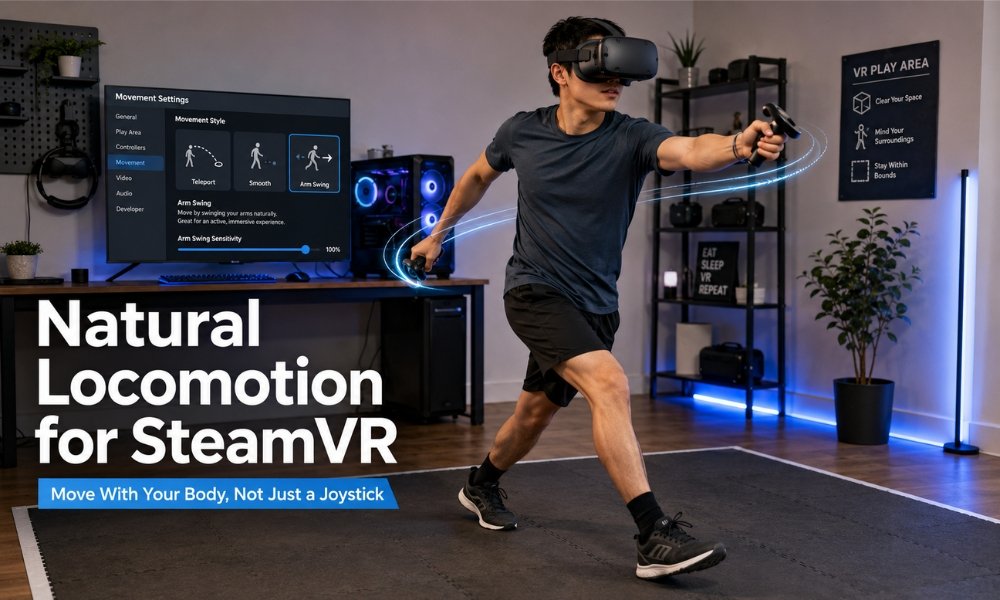
Natural Locomotion is a SteamVR utility that turns arm swinging or foot movement into in-game walking.
This helps because your body does something physical while your eyes see movement.
Best for:
- PCVR users
- Skyrim VR-style games
- Open-world walking games
- Users who get sick from joystick movement
Limitations:
- Setup can be annoying
- Game compatibility varies
- It is not as simple as built-in teleport movement
Worth trying if joystick walking makes you sick.
Prescription Lens Inserts
If you wear glasses, consider VR prescription inserts.
Glasses inside a headset can cause:
- Lens scratches
- Eye strain
- Poor fit
- Fogging
- Reduced comfort
Lens inserts help you see clearly and reduce the chance of nausea caused by eye strain.
Reliefband vs Sea-Band for VR Motion Sickness
Wearable nausea tools fall into two groups.
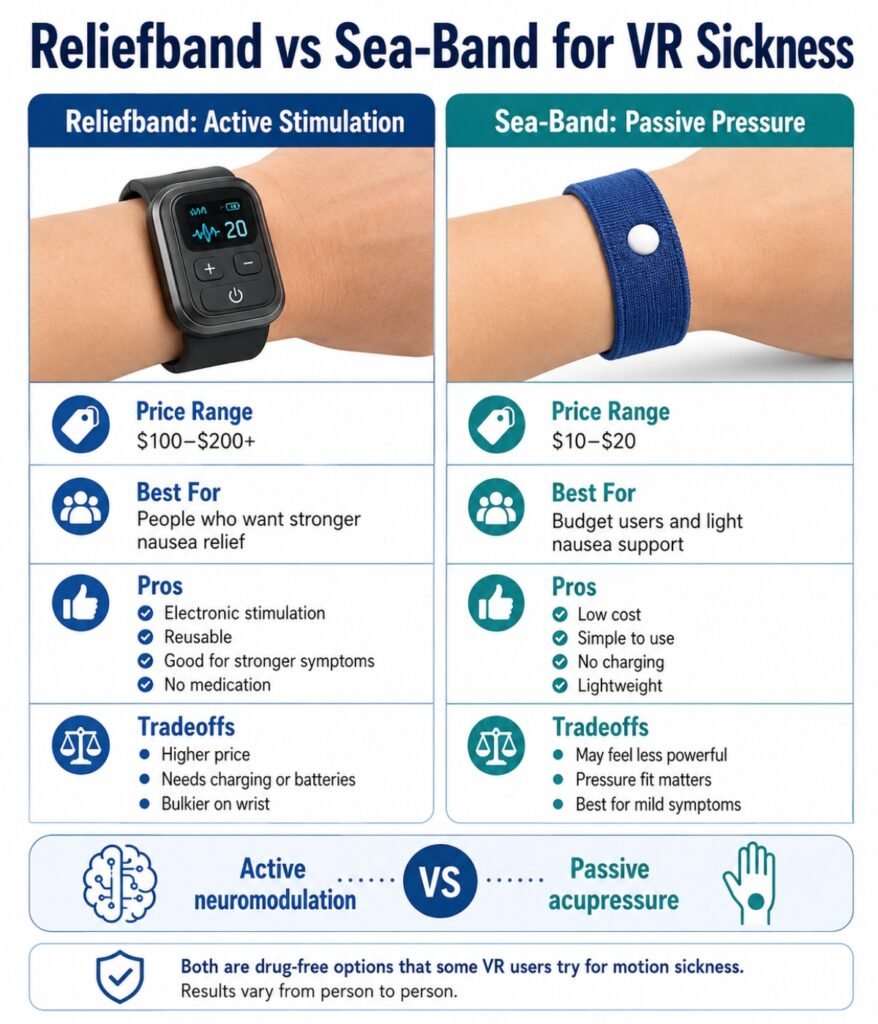
| Product Type | Example | How It Works | Best For | Typical Price |
| Passive acupressure | Sea-Band | Presses the P6 point on wrist | Mild prevention | Low cost |
| Active neuromodulation | Reliefband | Sends electrical pulses through wrist nerve pathway | Severe nausea | Higher cost |
Sea-Band
Sea-Band is cheap, reusable, and drug-free.
It works by applying pressure to the P6 point on your wrist.
The catch: placement matters. If the pressure point is off, it may do nothing.
Best for:
- Mild VR nausea
- Budget users
- Prevention before play
Reliefband
Reliefband is more expensive but more active.
It uses electrical stimulation to target nausea signaling. Users usually feel a tingling sensation in the palm area when placed correctly.
Best for:
- Severe motion sickness
- Users who get sick quickly
- People who want a non-pill option
Buyer advice:
Try free fixes first. Then try low-cost bands. Move to Reliefband only if nausea keeps blocking VR use.
Medical and Natural Remedies
Important: follow the label and ask a qualified healthcare professional if you have medical conditions, take other medications, are pregnant, or are unsure what is safe for you.
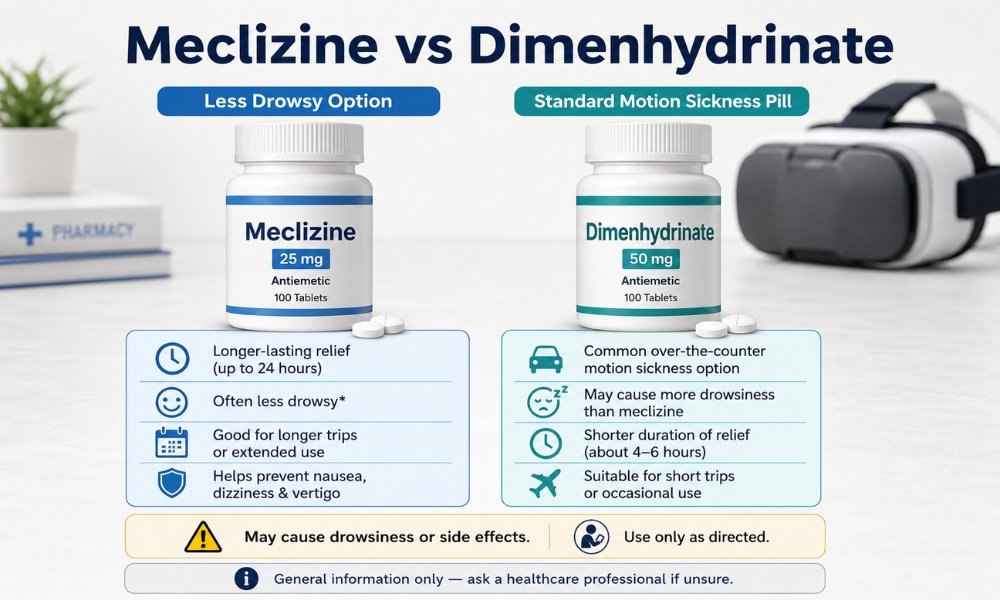
Meclizine vs Dimenhydrinate for Gaming Vertigo
Meclizine is often preferred for gaming because it usually causes less drowsiness than standard dimenhydrinate.
Common examples:
- Meclizine: Bonine, Dramamine Less Drowsy
- Dimenhydrinate: standard Dramamine
Dimenhydrinate can work, but it can make you sleepy, foggy, or less alert.
For VR, that matters.
If you are trying to enjoy a game, fitness app, or social VR session, heavy drowsiness is not ideal.
Ginger
Ginger is a useful natural option.
It works more at the stomach level and usually does not cause drowsiness.
Options:
- Ginger chews
- Ginger capsules
- Ginger tea
- Ginger gum
Try it 30 to 60 minutes before play.
Peppermint
Peppermint gum or tea may help some users feel calmer and less nauseous.
It is not a cure, but it is low-risk for many people.
Troubleshooting Table: Match the Symptom to the Fix
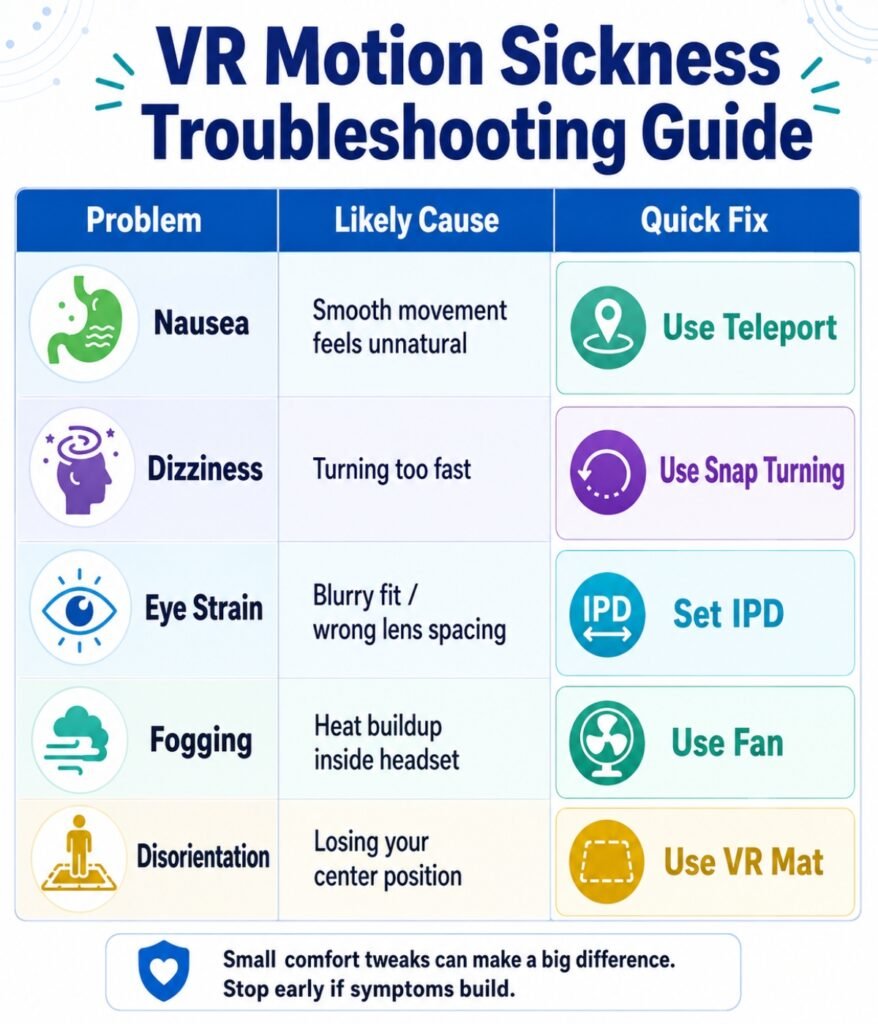
| Problem | Likely Cause | First Fix | Next Fix |
| Nausea after joystick walking | Smooth locomotion | Use teleport movement | Try Natural Locomotion |
| Nausea when turning | Smooth turning | Use snap turning | Use swivel chair |
| Headache between eyes | IPD mismatch | Adjust IPD | Use prescription inserts |
| Hot face and sweating | Poor airflow | Use room fan | Try vented interface |
| Foggy lenses | Moisture buildup | Warm headset first | Add active cooling interface |
| Feeling lost in room | Postural instability | Use VR mat | Touch couch with calves |
| Sickness after 10 minutes | Too much too soon | Use 5-minute sessions | Build VR legs slowly |
| Blurry image | Poor fit or dirty lenses | Clean lenses, adjust strap | Upgrade head strap |
| Nausea in PCVR | Latency or low frame rate | Lower settings, improve Wi-Fi | Use wired link where possible |
Prevention Methods Before Every VR Session
Use this checklist before you play:
- Drink water.
- Avoid heavy meals right before VR.
- Avoid alcohol before VR.
- Turn on a floor fan.
- Clean lenses with microfiber.
- Set IPD correctly.
- Use teleport movement.
- Use snap turning.
- Start with short sessions.
- Stop early if symptoms appear.
Expert Recommendations by User Type
If You Are Brand New
Start seated.
Use teleport movement.
Play 5 to 10 minutes.
Use a fan.
Avoid racing, flying, and rollercoasters for now.
If You Get Sick From Turning
Turn off smooth turning.
Use snap turning.
Try a swivel chair.
Physically turn your body instead of using the joystick.
If You Get Headaches
Check IPD.
Loosen the face pressure.
Upgrade your head strap.
Use prescription inserts if needed.
Take more breaks.
If You Get Hot and Sweaty
Use a room fan.
Wear lighter clothing.
Use a silicone facial interface.
Try shorter sessions.
Do not play in a hot room.
If You Want PCVR
Use wired or strong Wi-Fi.
Keep frame rates high.
Avoid stutter.
Try Natural Locomotion.
Lower graphics settings if performance dips.
FAQ Section
Does VR motion sickness eventually go away?
Yes, it often improves as your brain adapts. This process is called getting your VR legs. Start with short sessions and stop at the first sign of nausea.
Is there a medicine that fully prevents cybersickness?
Some people find strong prevention from motion sickness medicine like meclizine, but no medicine works perfectly for everyone. Follow product directions and check with a qualified professional if you are unsure.
Do acupressure wristbands work for VR?
They can help some users, especially for mild nausea. Placement matters. The pressure point must line up correctly on the wrist.
What is the difference between smooth turning and snap turning?
Smooth turning rotates the camera continuously and can trigger nausea. Snap turning jumps the camera in quick angle steps, which is easier for most beginners.
Can I use my glasses inside a VR headset?
Yes, but prescription lens inserts are safer and more comfortable. Glasses can scratch VR lenses if they touch.
Does chewing gum help with VR motion sickness?
Chewing gum can help some users because rhythmic chewing may calm the vestibular system and reduce visually induced motion sickness.
What is the best head strap for Meta Quest 3 comfort?
For comfort, BoboVR S3 Pro and BoboVR M3 Pro are strong halo-style choices. For active gaming, Kiwi Design K4 Boost is a strong secure-fit option.
What is the best anti-fatigue mat for virtual reality?
ProxiMat is a strong VR-specific option because it uses tactile bumps to help you feel your position and direction with your feet.
Should beginners play VR standing or seated?
Start seated. It reduces postural instability and makes your brain adapt with less sensory load.
Should I use a headset fan or room fan?
Start with a room fan. It cools your body and provides directional grounding. Use a headset fan if lens fog is your main issue.
Final Troubleshooting Checklist
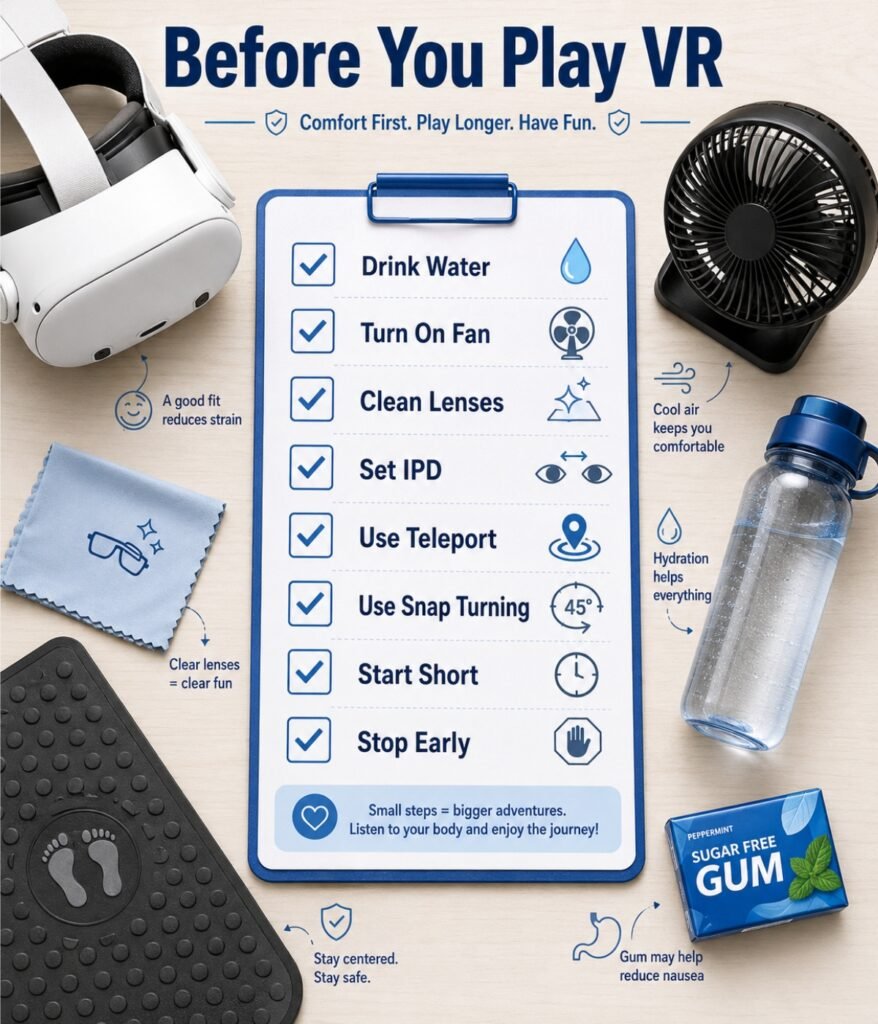
Before your next VR session, run this list:
- I am hydrated.
- I am not exhausted.
- I am not playing after alcohol.
- My room is cool.
- A floor fan is pointed toward me.
- My headset lenses are clean.
- My IPD is set correctly.
- My headset is not pressing hard on my face.
- Teleport movement is on.
- Snap turning is on.
- Vignette comfort setting is on if needed.
- I am starting with a short session.
- I will stop immediately if nausea starts.
Final Recommendation
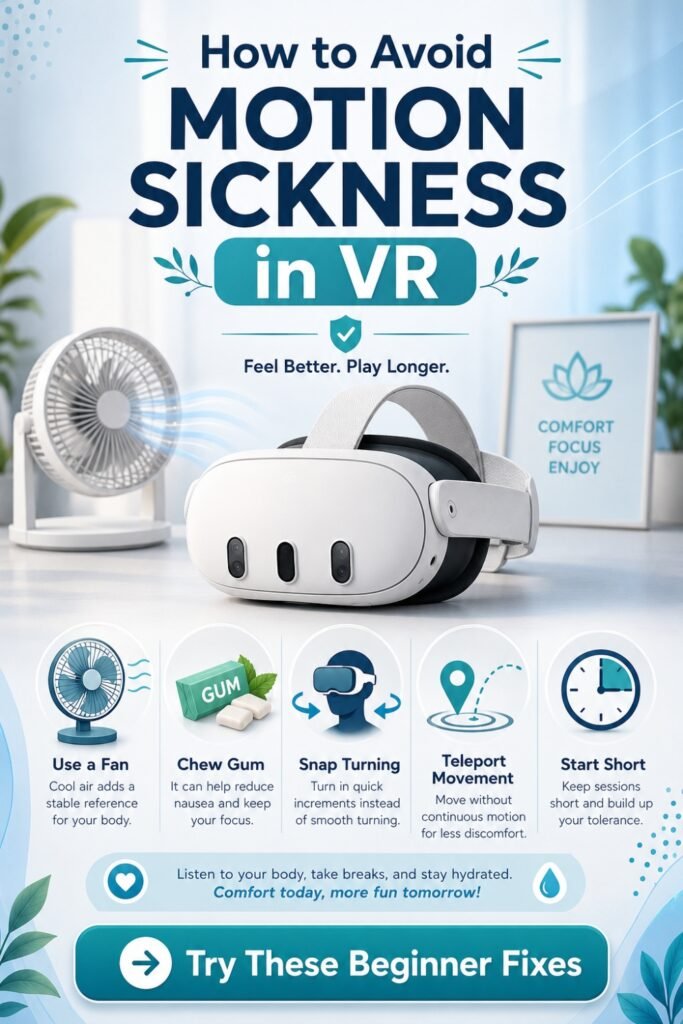
The best way to avoid motion sickness in VR is to reduce sensory conflict before it begins.
Start with stationary games.
Use teleport movement.
Turn on snap turning.
Use a fan.
Chew gum.
Calibrate IPD.
Upgrade your strap if the headset hurts your face.
Use a VR mat if you lose orientation.
Try ginger or meclizine only if basic fixes are not enough.
And remember the rule that saves beginners:
Stop early. Build slowly. Let your brain adapt.
That is how you get your VR legs without turning your headset into something your body learns to fear.